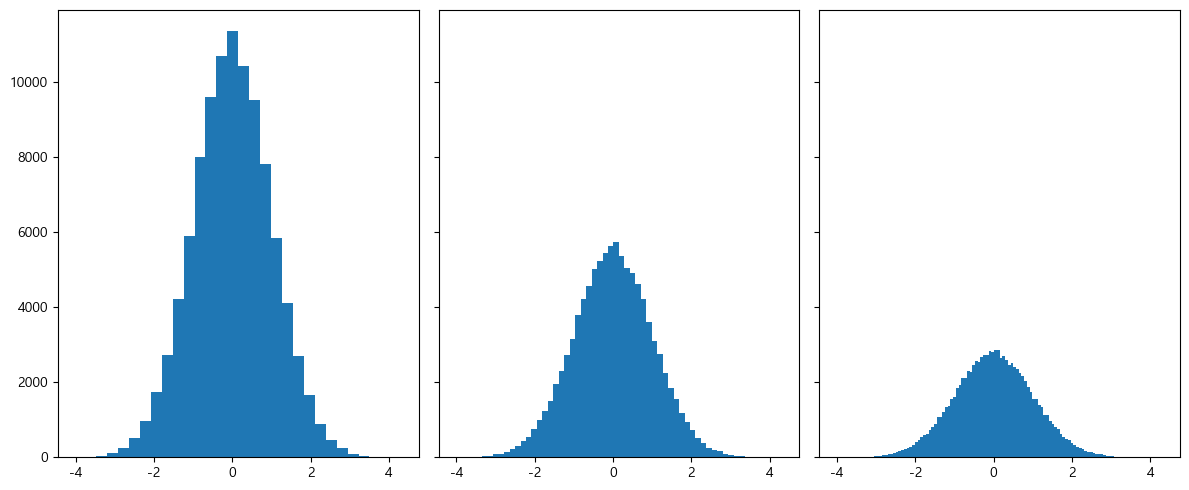
N = 100000
bins = 30

x = np.random.randn(N)

# sharey: y축을 다중 그래프가 공유
# tight_layout: graph의 패딩을 자동으로 조절해주어 fit한 graph를 생성
fig, axs = plt.subplots(1, 3, sharey=True, tight_layout=True)

fig.set_size_inches(12, 5)

axs[0].hist(x, bins=bins)
axs[1].hist(x, bins=bins * 2)
axs[2].hist(x, bins=bins * 4)
N = 100000
bins = 30

x = np.random.randn(N)

fig, axs = plt.subplots(1, 2, tight_layout=True)
fig.set_size_inches(9, 3)

# density=True 값을 통하여 Y축에 density를 표기할 수 있습니다.
axs[0].hist(x, bins=bins, density=True, cumulative=True)
axs[1].hist(x, bins=bins, density=True)

plt.show()
Pie Chart
labels = ["Samsung", "Huawei", "Apple", "Xiaomi", "Oppo", "Etc"]
sizes = [20.4, 15.8, 10.5, 9, 7.6, 36.7]
explode = (0.3, 0, 0, 0, 0, 0)

# texts, autotexts 인자를 활용하여 텍스트 스타일링을 적용합니다
# texts는 label에 대한 텍스트 효과
# autotexts는 파이 위에 그려지는 텍스트 효과
patches, texts, autotexts = plt.pie(
    sizes,
    explode=explode,  # 파이에서 툭 튀어져 나온 비율
    labels=labels,
    autopct="%1.1f%%",  # 퍼센트 자동으로 표기
    shadow=True,  # 그림자 표시
    startangle=90,  # 파이를 그리기 시작할 각도
)

plt.title("Smartphone pie", fontsize=15)

# label 텍스트에 대한 스타일 적용
for t in texts:
    t.set_fontsize(12)
    t.set_color("gray")

# pie 위의 텍스트에 대한 스타일 적용
for t in autotexts:
    t.set_color("white")
    t.set_fontsize(18)

plt.show()
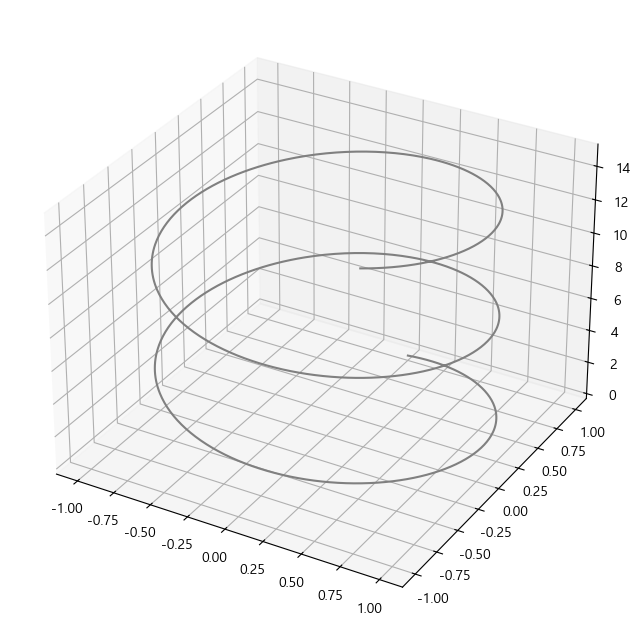
from mpl_toolkits import mplot3d

# 밑그림 그리기 (캔버스)
fig = plt.figure()
ax = plt.axes(projection="3d")  # project=3d로 설정

# x, y, z 데이터를 생성
z = np.linspace(0, 15, 1000)
x = np.sin(z)
y = np.cos(z)

ax.plot3D(x, y, z, "gray")
plt.show()








댓글